
Email Setup Instructions for Aussie-Webhost.com.au plans.
Outlook 2000, Outlook 2002 or Outlook XP
1. Start Microsoft Outlook and go to the Inbox
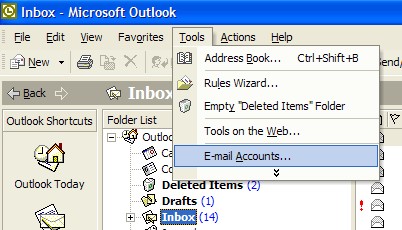
2. From the Tools menu, choose Email Accounts
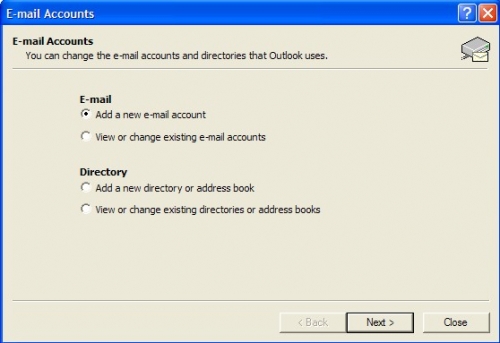
3. Select 'Add a New Email Account'
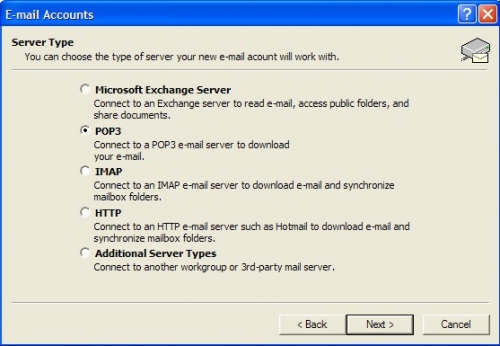
4. On the next screen choose 'POP3' and click 'Next'
5. You should see a screen like this one:
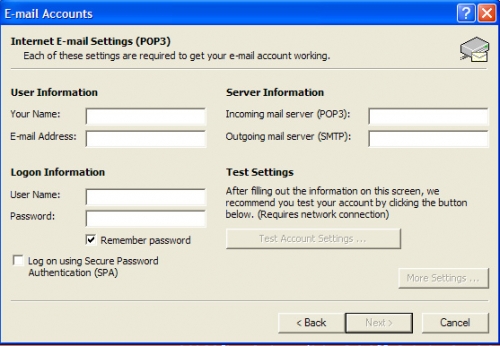
6. This screen requires you to enter the details to configure this account, complete the details as follows: Your Name: Type in your display name. E-mail Address: the full Email address that is to be used. Incoming mail server (POP3): The incoming mail server is mail.yourdomain.com Outgoing mail server (SMTP): The outgoing mail server is mail.yourdomain.com User Name: Your username is your complete email address Password: Enter the password you selected or that was provided us. Ensure you have selected the Remember Password check box. You can ignore the SPA tick box.
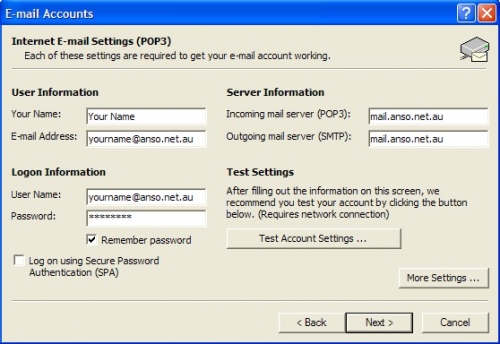
Your screen should look something like this above.
7. Click More Settings.
8. Under the General tab, Enter the name with which you would like Microsoft Outlook to list the email account.
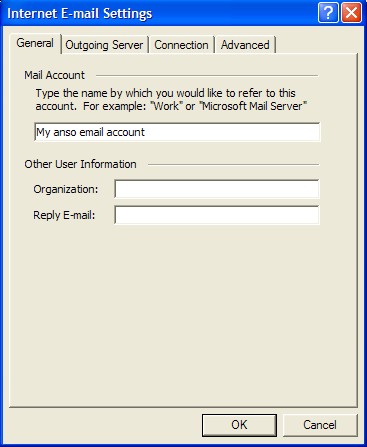
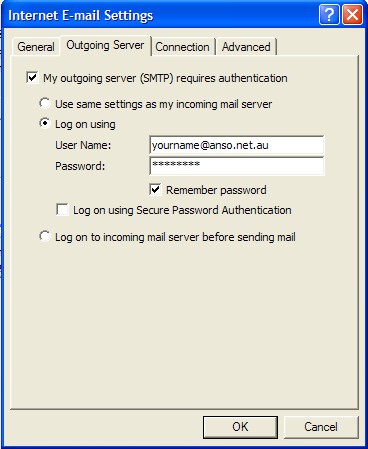
9. Click on the Outgoing Server tab. Tick Outgoing Server Authentication.
10. User Name: Your username is your complete email address.
11. Password: Enter the password you selected or that was provided us.
12. Click OK at the bottom.
13. Once you are happy with these details click Next> to continue.
14. Setup of your email account is complete.
